Posts tagged "Workflow"
-
You can now subscribe to Netlify events from ChatGPT and set up automations that respond to what’s happening on your sites.
Instead of checking the Netlify dashboard or waiting on an email, you can have ChatGPT act as soon as something happens. Events you can subscribe to include:
- A deploy succeeded
- A build failed
- A form submission came in
For more events to subscribe to, check out our deploy events.
Combine events with Netlify plugin and MCP server
Events get more useful when you pair them with everything else you can already do through the Netlify ChatGPT plugin and Netlify MCP server. For example, you could set up an automation that:
- Reviews new form submissions and flags the ones that need a follow-up
- Summarizes what changed when a production deploy succeeds
Because these automations live in ChatGPT, you can describe what you want in plain language and adjust it as your workflow changes.
Get started
Connect Netlify in ChatGPT, then ask it to subscribe to the events you care about for your project. Learn more in our guide to using Netlify with ChatGPT.
-
You can now add comments to individual lines in the diff on the Code tab of Agent Runners, so you can give your agent precise feedback on the code it generated.
Previously, asking for a fix meant describing where the problem was in your prompt, such as naming the file, quoting the code, or explaining which function you meant.
Now you can pinpoint exactly where you want changes. Open the Code tab for an agent run, select the + next to a line in the diff, and leave a comment about what you want changed. Your comments are sent along with your next prompt, so the agent knows exactly which code lines you’re referring to.
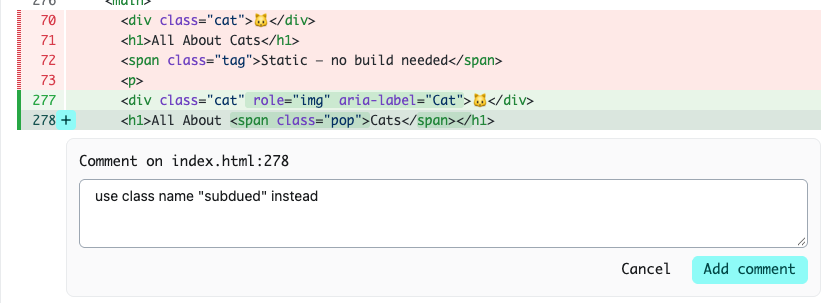
This makes follow-up prompts more useful when you want to:
- Correct a specific bug or edge case without rewriting the whole request
- Ask for a different approach in one part of a change while keeping the rest
- Flag naming, styling, or structure issues right where they appear
- Leave feedback on several spots across multiple files in a single follow-up run
Try it on your next agent run, or learn more about making changes with Agent Runners.
-
Agent Runners now shows you a preview right next to your prompt.
Previously, you’d get a link to the Deploy Preview and have to open it in a separate tab to see what the agent changed. Now the preview appears inline, so you can review the result and write your next prompt without switching back and forth. Plus, you can still access the Deploy Preview link if you need it.
This makes iterating with an agent feel more like a conversation. See what changed, spot what’s off, and follow up with the next instruction, all in one view.
Example flow
For example, say you’re building a strategic task organizer and prompt your agent to add a button that generates a quarterly impact report. Now you can watch your agent’s updates in the side preview next to your prompt.
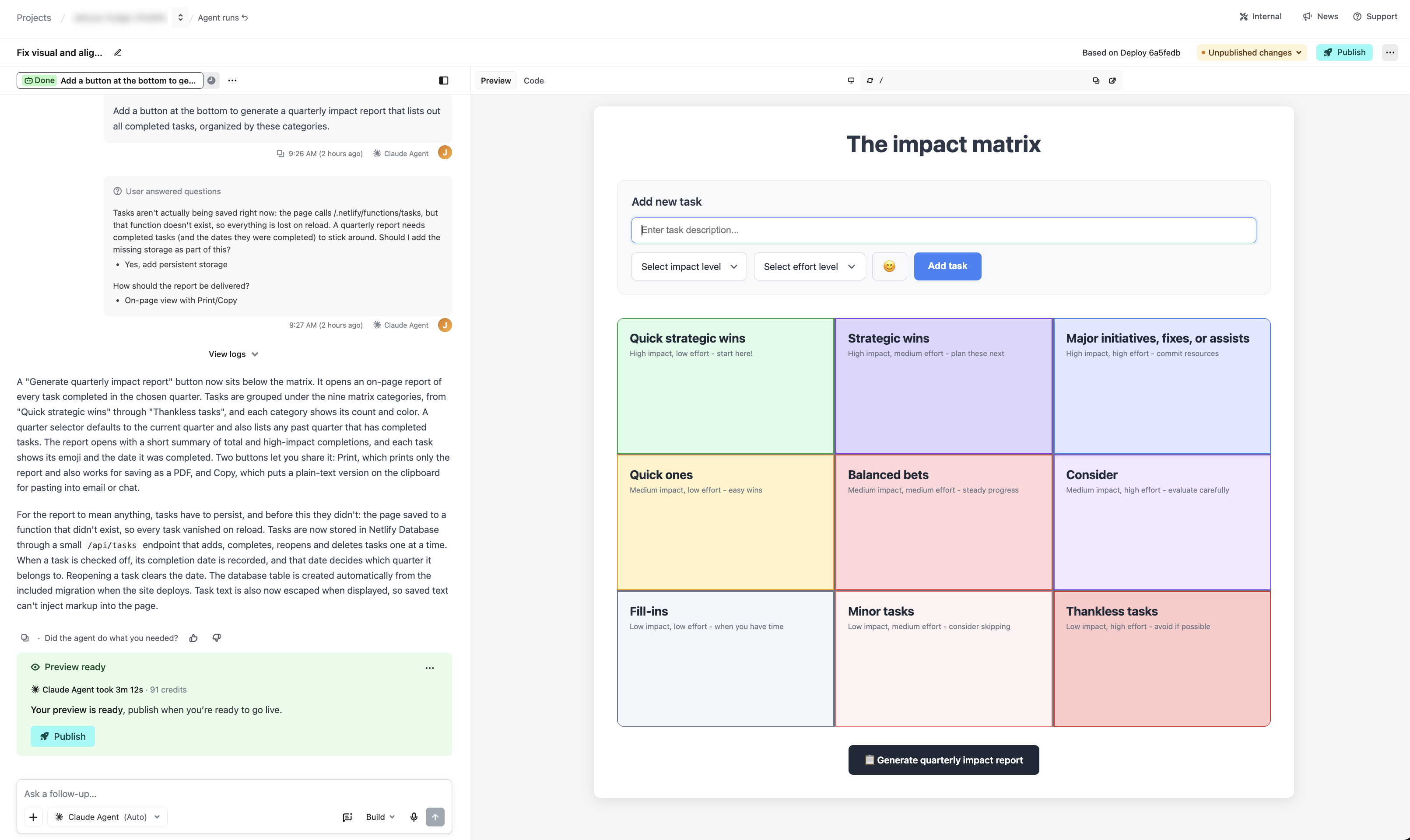
In this example, your agent on Netlify will also let you know if your project cannot save your tasks across browser sessions yet, and you can approve adding a database in the same view.
This is just one example of how Netlify gives you professional-grade capabilities, such as a real working database, with your agent of choice when you prompt with Agent Runners.
Try it out
See it in action when you start a new agent run or learn more about working with agents on Netlify.
-
As part of our ongoing work to simplify the Netlify dashboard, we’ve added an activity feed to the project overview page. It’s available on all plans and adapts to how your project is set up.
Now when you open a project, the activity feed gives you a snapshot of your project’s latest updates, with quick access to:
- Production versions of your project, including the version last published
- Preview versions of your project
- Agent runs, so you can see what agents are working on and what you and your teammates have prompted
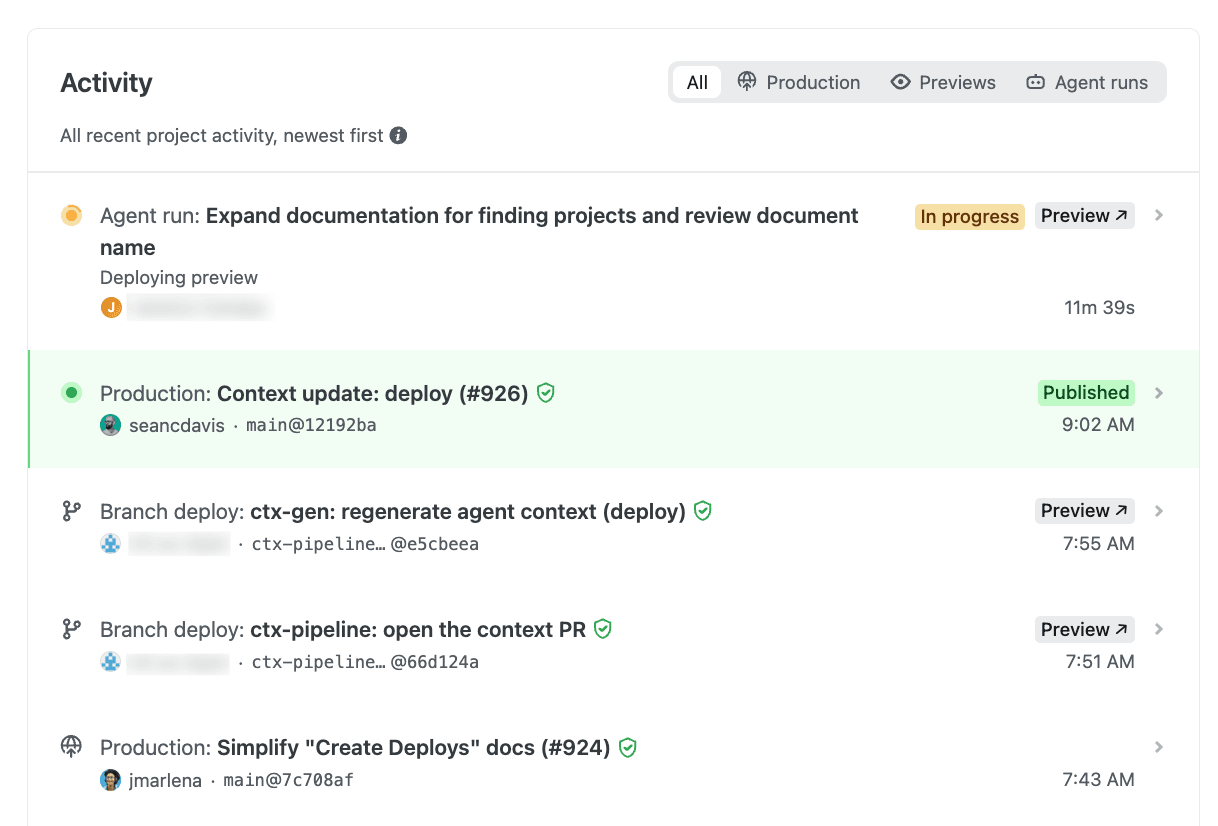
This means that instead of tracking down Production deploy links, Deploy Preview links, branch deploy links, and your agent runs list separately, you can now see where your project stands at a glance in one single spot.
The feed also suggests next steps to help you get started. It’s one of several dashboard improvements we’re gradually rolling out to simplify the Netlify experience, so you may have spotted a few already, with more to come.
-
Agent Runners are now better at completing their work when a run has less credits remaining than the task requires.
If you are close to running our of credits during a run, the agent will start focusing on delivering the most useful result it can with the credits it has left. It finishes work already in progress, leaves the project in a working state, and provides a clear summary of what it completed.
Previously, an ambitious task could end abruptly before the agent wrapped up, leaving partial changes and little explanation. Now, you’re more likely to get a working result you can use right away, or a solid, clearly documented starting point for your next run.
This improvement applies automatically to every agent and model available in Agent Runners. There’s nothing to enable or configure. Learn more in Make changes with Agent Runners and how credits work.
-
Sharing your Netlify projects is now faster with built-in social media share buttons.
When you’re ready to show off what you’ve built, you can share your project directly to X, LinkedIn, Reddit, Facebook, or Bluesky. Choose your preferred platform and Netlify opens a ready-to-publish post with your project link, so you can reach your community with fewer steps.
-
You can now connect repositories hosted on Cursor Origin to Netlify, so every Git push deploys an updated version of your project at a preview URL or a production URL.
Netlify supports Cursor Origin with continuous deployment, meaning that once your codebase’s repo is connected, Netlify will automatically:
- Build and deploy your project with every git push
- Build Deploy Previews for your pull requests
- Send deploy notifications to your pull request comments on Cursor Origin so you can check preview URLs there
Requirements
Cursor Origin uses OAuth authentication, so connecting a repo works much like our existing Azure DevOps support: the Cursor user who authenticates needs access to the Cursor Origin codebase that owns the repository.
To use Cursor Origin with Netlify, you do not need a specific pricing plan with Netlify.
Support scope
Note that features outside of continuous deployment, such as Agent Runners and the Netlify Drawer, are not supported at this time.
Get started
To learn more, check out these docs:
-
Agent Runners can now scope ambitious prompts for new projects to create a partial working project and provide next steps within the available credit budget.
Previously, a brand new project could use up its credit budget before the agent finished for ambitious prompts, leaving the run marked Cancelled partway through.
Now, your agent scopes the work more intelligently. It builds out part of the project and shares a plan for next steps, so you can preview a working version within your new project credit budget instead of the run stalling out.
Learn more in Make changes with Agent Runners.
-
Netlify now creates a Deploy Preview for every pull request in a GitHub stack when the stack ultimately targets your project’s production branch (usually
main). You can review and share each layer of a larger change before it merges.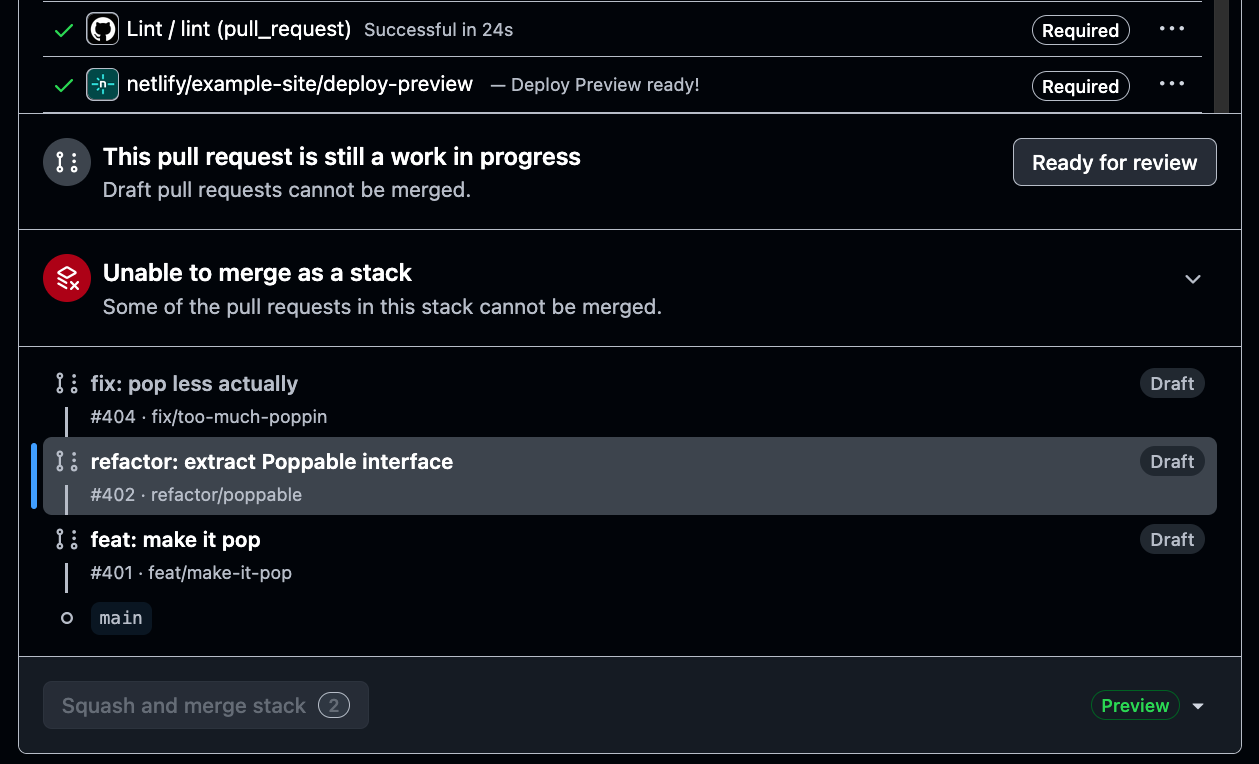
GitHub Stacked Pull Requests help teams split a larger update into smaller, connected pull requests. Each pull request can focus on one step of the work, making changes easier to review and merge in sequence.
Previously, Netlify only created a Deploy Preview for the first pull request in your stack while additional pull requests in the stack didn’t get their own Deploy Previews. Now, every pull request in the stack gets its own Deploy Preview.
There’s nothing new to configure. Create and update your stack in GitHub as usual, and Netlify automatically adds a Deploy Preview to each eligible pull request.
Learn More